Can the Beelink SEI Mini PC Ryzen 7 7735HS drive triple 4K displays?
Deal Score+3
Quick Answer
Beelink SEI Mini PC with Ryzen 7 is one of the most searched compact computing solutions right now. Below is a clear, technical breakdown to help you decide if it fits your workflow.
Quick Answer
The Beelink SEi range uses AMD Ryzen 7 7735HS, delivering strong multi-core performance around 10,000pts in Cinebench R23 sustained. The GPU remains the Radeon 680M — capable of 1080p gaming in less demanding titles. At ~£300–350 UK, it competes closely with the Beelink SER7 Pro (Ryzen 7 7840HS) which offers the newer 780M iGPU.
Introduction
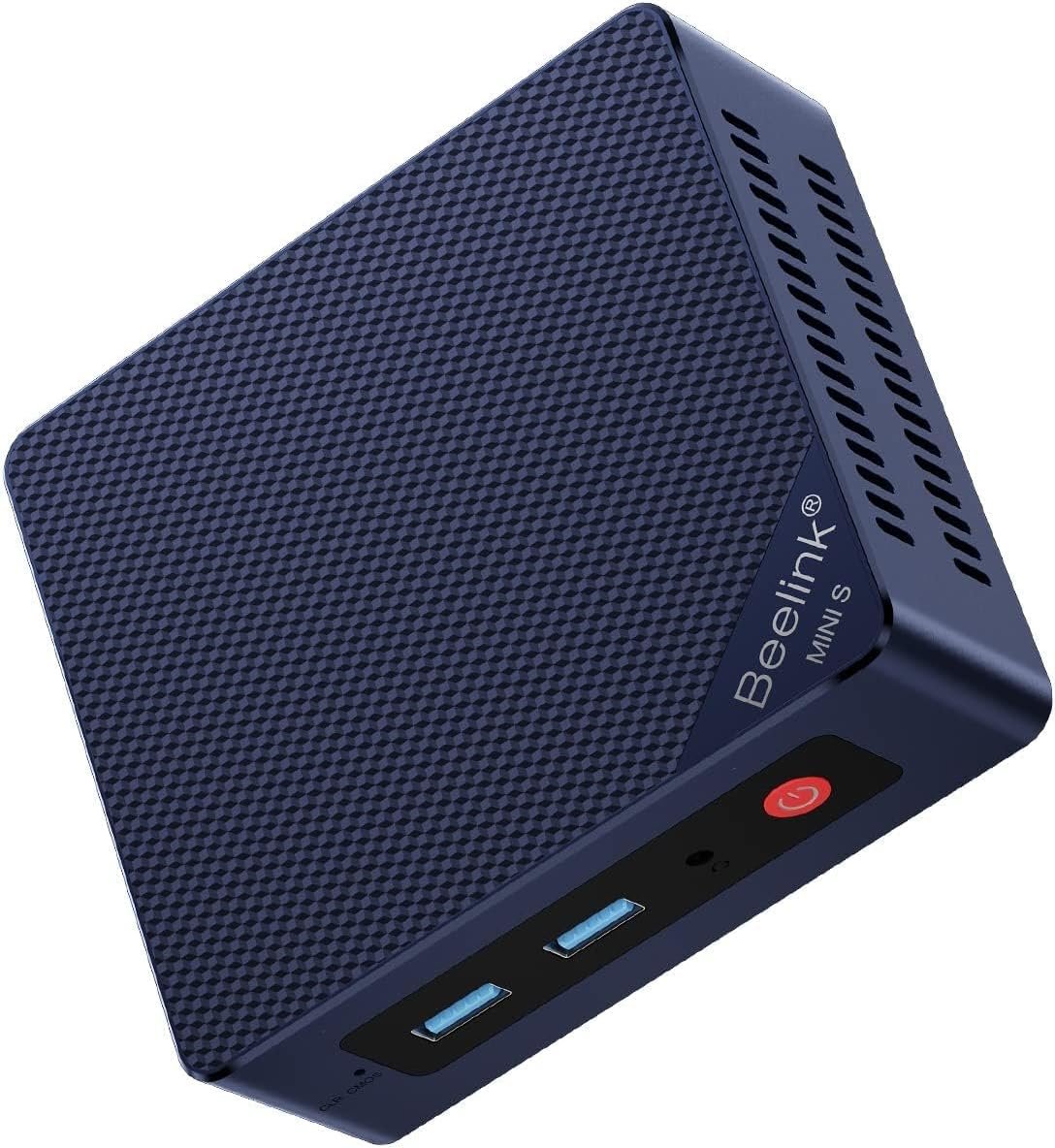
The Beelink SEI Mini PC with an AMD Ryzen 7 7735HS and integrated Radeon 680M is marketed as a compact system capable of driving three UHD (4K) displays simultaneously. Below I summarize the product’s claims, explain how the ports map to real-world multi‑monitor setups, and list practical caveats and setup tips so you know what to expect.What the product claims
- Processor: AMD Ryzen 7 7735HS (8 cores / 16 threads, up to 4.75 GHz)
- Graphics: AMD Radeon 680M (integrated)
- Memory / Storage: (product listing shows variants — description references LPDDR5 and a PCIe x4 NVMe SSD)
- Triple screen outputs called out in the listing:
- HDMI 2.0 — 4K @ 60 Hz
- DisplayPort (DP) — up to 4K @ 144 Hz (product text)
- USB‑C (DisplayPort Alt Mode) — up to 4K @ 120 Hz
- Other connectivity: 2.5G LAN, Wi‑Fi 6, Bluetooth 5.2
Can it actually run three 4K displays at once?
Short answer: Yes — according to Beelink’s specifications the SEI supports three simultaneous 4K displays using the three native outputs. However, practical limits and conditions apply.Important technical considerations and caveats
- Bandwidth and port versions:
- HDMI 2.0 supports 4K @ 60 Hz — this is standard and reliable for a 4K60 panel.
- DP output claimed up to 4K @ 144 Hz — this requires a DisplayPort 1.4 capable output and a monitor that accepts 4K@144, often relying on DSC or specific link rates. Confirm the SEI’s DP revision with the seller if you need sustained 4K@144 without compression.
- USB‑C 4K @ 120 Hz requires DisplayPort Alt Mode over USB‑C and an appropriate cable or adapter that supports that bandwidth.
- GPU performance:
- The integrated Radeon 680M can drive multiple displays for desktop, productivity and video playback. Running demanding 3D workloads (modern games at triple 4K, heavy GPU rendering) will be limited — frame rates will be low unless you reduce resolution/refresh or use an external GPU.
- Video decoding (hardware-accelerated 4K video) should handle playback across multiple displays, but simultaneous high-bit-rate streams on all three monitors will push resources.
- System memory and thermal limits:
- High-resolution multi‑monitor setups increase memory and GPU usage. The SEI is passively/actively cooled with two fans but sustained heavy load may cause thermal throttling if ventilation is restricted.
- Driver and OS configuration:
- Make sure to install the latest AMD GPU drivers and Windows updates. Some multi‑monitor issues are solved in driver updates.
Recommended setup checklist
- Confirm each monitor’s supported input and maximum refresh rate (HDMI 2.0 vs HDMI 2.1, DP 1.4, etc.).
- Use high-quality certified cables:
- HDMI 2.0 cable for the 4K@60 monitor.
- DisplayPort 1.4 cable for the DP monitor (if you want 4K@144).
- USB‑C to DisplayPort (or a USB‑C cable that supports Alt Mode DP 1.4) for the USB‑C monitor if you need 4K@120.
- Install the latest AMD graphics drivers from AMD/Beelink.
- Connect monitors and configure display settings in Windows (Display Settings → Advanced display settings) to set resolution, refresh rate, and color depth for each display.
- If any high refresh rate option is missing, check cable/port capability and try alternative adapters/cables (some USB‑C cables only support USB‑2 speeds and not video alt mode).
Performance expectations by use case
- Office/Productivity (multiple 4K documents, browsers, spreadsheets): Smooth and completely usable.
- 4K video playback on multiple monitors: Generally good thanks to hardware decoding, but heavy multi‑stream playback may raise CPU/GPU usage.
- Gaming or GPU rendering at triple 4K (high refresh rates): Unrealistic for the integrated GPU — you will need to lower resolution/refresh or use a discrete GPU for acceptable frame rates.
Troubleshooting tips
- No signal on a monitor: test with a known good cable and single monitor first to isolate the port.
- Refresh rate options limited: ensure cable and monitor support the desired mode and check driver/firmware updates.
- Flicker or instability at high refresh rates: try reducing color depth or enabling/disabling HDR, or use another port/cable that supports the bandwidth.
Summary / Final verdict
The Beelink SEI Mini PC Ryzen 7 7735HS is advertised as capable of driving three 4K displays simultaneously via HDMI 2.0 (4K@60), DP (up to 4K@144) and USB‑C (up to 4K@120). In practice, yes — it can power a triple 4K desktop for productivity and video playback if you use the appropriate cables and monitors. However, expect limitations for high‑refresh‑rate gaming or heavy GPU tasks on three 4K screens at once. Verify port versions and use high‑quality cables, update drivers, and configure refresh rates per monitor to get the best result. Key Features Performance & Real-World UseIs the Beelink SEI Mini PC with Ryzen 7 Worth It?
Who Should Buy This? The Beelink SEI Mini PC with Ryzen 7 is a compact mini-desktop built around an AMD Ryzen 7 processor, offering strong CPU performance in a small, energy-efficient chassis. It is intended for productivity, media playback, and light content-creation tasks. Performance: good multi-core CPU performance for office work, multitasking, and light photo/video editing; integrated graphics handle 1080p media and casual gaming. Use case: office PC, home theater, developer workstation, or light creative work. Limitation: small chassis limits cooling and upgradeability, so sustained heavy CPU/GPU loads can throttle and it’s not suited for high-end gaming or professional 3D/compute workloads. Compare Prices & Offers Final Verdict If you want the best current deal and availability, check the latest offers below.
This page contains affiliate links. We may earn a commission at no extra cost to you.